Showing posts with label Maximo. Show all posts

Wednesday, May 20, 2026

Launch Point Variables in Maximo: Beyond the Attribute Binding

Most Maximo developers are familiar with Launch Point Variables, but in real-world implementations, their usage is often limited to just one binding type: Attribute.

While this works, it overlooks several powerful and lesser-used binding types—particularly SYSPROP—that can significantly simplify scripts, reduce boilerplate code, and improve maintainability.

This article explores LITERAL, MAXVAR, and SYSPROP bindings, explains when to use each, and demonstrates real-world examples.


Why Look Beyond Attribute Binding?

Using only Attribute bindings often leads to:

  • Hard-coded values in scripts
  • Repeated MXServer imports
  • Less readable and harder-to-maintain automation code

Launch Point Variables provide a clean way to externalize values and configuration, making scripts simpler and more flexible.


Overview of Common Launch Point Variable Binding Types

Binding TypeSourceBest Used ForWhy It Matters
LITERALStatic user-defined valueFixed text, flags, small constantsSimple and lightweight
MAXVARMAXVARS tableConfigurable business valuesNo redeployment needed
SYSPROPSystem PropertiesSystem-level configurationEliminates MXServer boilerplate

LITERAL Binding: Simple and Effective

What It Is

A LITERAL binding stores a fixed value entered by the developer.

When to Use

  • Messages and labels
  • Feature flags
  • Constant values reused across scripts

Example

Launch Point Variable

  • Name: WELCOME_MSG
  • Binding Type: LITERAL
  • Value: Welcome to Maximo

Script

service.log("INFO", WELCOME_MSG)

This approach avoids scattering string literals throughout your code and keeps changes centralized.


MAXVAR Binding: Configurable Business Logic

What It Is

The MAXVAR binding retrieves values from the MAXVARS table.

When to Use

  • Thresholds
  • Limits
  • Environment-specific configuration

Example

Launch Point Variable

  • Name: MAX_LOGIN_ATTEMPTS
  • Binding Type: MAXVAR
  • MAXVAR Name: MAXLOGINATTEMPTS

Script

if int(loginAttempts) > int(MAX_LOGIN_ATTEMPTS):
service.log("WARN", "Login attempts exceeded")

Business users or administrators can now change behavior without modifying or redeploying code.


SYSPROP Binding: Clean Access to System Properties

The Common (But Verbose) Approach

Traditionally, developers access system properties like this:

from psdi.server import MXServer

mxServer = MXServer.getMXServer()
timeout = mxServer.getProperty("mxe.int.webclient.timeout")

This works—but adds imports, boilerplate, and visual noise.


The Better Way: SYSPROP Binding

What It Is

SYSPROP allows direct access to System Properties through a Launch Point Variable.

Example

Launch Point Variable

  • Name: WEB_TIMEOUT
  • Binding Type: SYSPROP
  • Property Name: mxe.int.webclient.timeout

Script

timeout = int(WEB_TIMEOUT)

Benefits

  • No MXServer import
  • Cleaner and more readable scripts
  • Easier maintenance and testing

Choosing the Right Binding Type

A simple rule of thumb:

  • LITERAL → Fixed values and messages
  • MAXVAR → Business-configurable parameters
  • SYSPROP → System-level configuration

If a value may change without code changes, avoid hard-coding it.

Saturday, September 27, 2025

Earning Functional skills via Maximo Data

Every Maximo consultant must know about their client before managing service or implementing a change.

However, this may not kindle interest to a technical consultant or Developer. They are usually more excited about customizing an integration, developing automation scripts etc., but less interested in learning the intricacies of Asset Maanagement or understanding the client’s operations.
Here are few methods to make the Functional learning interesting and easy.

Study your client:

Functional knowledge is meaningful only if it has business context. Hence, knowing about client’s business is crucial.

Finding answers to below questions, would help to gain business context.

·        What is their core business?  Like Transportation, Electricity, Banking, Hospital etc.

·        What are the applications and modules used by our client?

·        Identify the Custom and Out of the Box applications used by client.

·        Who are the end users of those applications? Technicians, Managers, Third party vendors etc.

Read Maximo Records:

This is another effective way to get the 'Business Perspective'.

·        Maximo records are artifacts of business transaction.

·        Maser data suggests the client’s core business details. Example: Assets, Companies, Items etc.

·        Transactional data such as work order; purchase requisition follow a cycle. Reading the description, worklog notes, status changes etc. can help us to understand what the client does on day-to day basis.

Explore Maximo data structure:

Maximo applications are interconnected at various levels. If we drill down from Modules, Application to granular level of data fields, then Maximo will reveal the meaning and functional goal behind each component.

·        Explore the various Objects (tables) & connection between them.

·        Most importantly, knowing the purpose of each object, field is essential to before working on an implementation or a change request.

·        Why: A simple change like ‘conditionally enabling a checkbox’, may not interest a ‘Maximo Developer’, but it can weigh a lot of business value; and fault in this functionality may result adverse impact and rework to business.

Learn via Configurations:

Custom and OOB Applications:

·        What are the 'Custom Applications' used by client? Why are they used?   

·        How is it different from Out of the Box? Why couldn't we achieve via OOB features?

Ask the above questions and find answers.  Discuss with client and suggest improvements.

Scrutinize the workflow.

Workflows are a great way to understand the business process. It gives a straightforward representation of business flow at granular level

Maximo status (Synonym domain)

·        Every status of Maximo record denotes part of Asset Management cycle.

·        Understand the process behind  each status.

·        Differentiate custom status with OOB and find out why is it used.

Integration:

·        Although Maximo can function as standalone system, most often it is required to interact with other systems of financial, work management, people management etc.

·        Understanding those external systems and transaction data help us to better understand the client’s business.

·        As the below questions and find answers; Discuss with your client with suggestions to improve.

o   What are the systems, data integrated with Maximo?

o   What is the Frequency of transaction

o   Is there a better way to do it? with simpler, faster means?

Reports:

BIRT reports, KPI charts are also good way to study and understand business process.

Analyze & Ask:

·        Analyze each part of implementation.

·        Explore the Maximo resources at IBM forums.

·        Then ask, “Is there a better way to do it?”  via

o   Configuration change / Customization / Upgrade

Be updated:

·        Keep learning about latest available & upcoming versioans on Maximo

·        Earn IBM badges , Certifications

Beyond Maximo:

·        Explore the 'EAM' concepts such as Asset Life cycle, Procurement process, Work order Management, Char-of account etc. beyond Maximo.

·        Understand 'What does it really mean in business world'?

Learn everyday:

               Every Fix, Change, Implementation is a way to learn.


Sunday, June 29, 2025

Querying Maximo Status Tables

  • Maximo status tables are used to track the status changes and helpful to understand business flow in various modules like workorder, procurement etc.
  • Querying the status tables for specific record is simple, that by using record key as parameter (WONUM, PONUM, INVOICENUM etc.)
  • However, retrieving the previous/next status of specific status for  bulk of records can be tricky.
  • Here are few queries, that can be helpful in such cases.

Saturday, March 22, 2025

Unlock the Maximo Start Center template via SQL

Maximo Start centers are useful to view different types of user data such as Workflow assignments, Result sets and other portals like Favourite applications, Bulletin board etc.

Each Start center is assigned to specific 'Security group' and Users can be granted 'access to edit' the portal themselves.

·    When a user opens the start center template to edit, a record will be inserted in SCCONFIG table with ‘groupnname as NULL’


·      If any other user tries to edit the same template, will get an error message as below.

·   Start center become locked for other user to edit and must wait until the main user Finish/Cancel the changes

·   In case, the main user is not reachable, or intermittently blocked access, it becomes impossible for others to edit.

·   There is a workaround to this by removing the entries in SCCONFIG, LAYOUT and other portal tables such as RSCONFIG, INBXCONFIG etc.


Here are the detailed steps.

1.  Query the SCCONFIG as below and get the layoutid

select scconfigid,* from scconfig (nolock) where sctemplateid=1601 and groupname is null;

2.  Query the SCCONFIG and LAYOUT tables using inner join to fetch related portal details.

select lo.scconfigid,layoutid,portletid,* from scconfig sc

inner join layout lo on sc.scconfigid=lo.scconfigid

where sc.sctemplateid=<>and sc.groupname is null and portletid<>'BBOARD'

Note: Bulletin board is not editable and no table for BBOARD. Hence it is excluded in the results.


Copy the LayoutIDs of each portal table.


3.  Generate and Execute the "Deletion Scripts' to remove entries from SCCONFIG, LAYOUT and Other Portal tables by using scconfigidlayoutid copied from above step.

delete from SCCONFIG where sctemplateid=<> and groupname is null and scconfigid=<scconfigid>;
delete from LAYOUT where scconfigid=<scconfigid>;
delete from ACTIONSCFG where layoutid=<layoutid>;
delete from FACONFIG where layoutid=<layoutid>;
delete from RSCONFIG where layoutid=<layoutid>;
delete from RSCONFIG where layoutid=<layoutid>; 
delete from INBXCONFIG where layoutid=<layoutid>;

Execute the script.

    Now, try opening the star center template, it will be editable.


Sunday, June 9, 2024


  SQL Query to get the Auto Script Launch Point Events

  • Maximo automation script has different launch points such as Attribute, Object, Action etc. The values like 'Objectname', 'Attributename', 'Launch Point Type' etc. can be viewed via both Maximo application and back end 
  • But Object events ('Before Save' After Save' with combination on 'Add/Update/Delete') and Attribute events ('Validate','Run Action' etc.) are stored as number format in the 'OBJECTEVENT' column of SCRIPTLAUNCHPOINT table. 
  • This number follow certain sequence and multiplication of factor specific to launch point type. It is quite complex task to identify these values from back end. 
  • Here is a simple query to get these values via back end. This is useful for Object and Attribute launch point events.    
SELECT OBJECTEVENT,
CASE 
WHEN LAUNCHPOINTTYPE ='OBJECT' THEN 
	CASE 
	WHEN OBJECTEVENT=1 THEN 'Initialize' 
	WHEN OBJECTEVENT BETWEEN 2 AND 14 THEN
		CASE 
		WHEN OBJECTEVENT/2=1 THEN 'BeforeSave - Add' 
        WHEN OBJECTEVENT/2=2 THEN 'BeforeSave - Update' 
        WHEN OBJECTEVENT/2=3 THEN 'BeforeSave - Add+Update'
		WHEN OBJECTEVENT/2=4 THEN 'BeforeSave - Delete' 
        WHEN OBJECTEVENT/2=5 THEN 'BeforeSave - Add+Delete'
		WHEN OBJECTEVENT/2=6 THEN 'BeforeSave - Update+Delete' 
        WHEN OBJECTEVENT/2=7 THEN 'BeforeSave - Add+Update+Delete'
		END
	WHEN OBJECTEVENT BETWEEN 16 AND 112 THEN
		CASE 
		WHEN OBJECTEVENT/16=1 THEN 'After Save - Add' 
        WHEN OBJECTEVENT/16=2 THEN 'After Save - Update' 
        WHEN OBJECTEVENT/16=3 THEN 'After Save - Add+Update'
		WHEN OBJECTEVENT/16=4 THEN 'After Save - Delete' 
        WHEN OBJECTEVENT/16=5 THEN 'After Save - Add+Delete'
		WHEN OBJECTEVENT/16=6 THEN 'After Save - Update+Delete' 
        WHEN OBJECTEVENT/16=7 THEN 'After Save - Add+Update+Delete'		
		END
	WHEN OBJECTEVENT BETWEEN 128 AND 896 THEN 
		CASE 
		WHEN OBJECTEVENT/128=1 THEN 'After Commit - Add' 
        WHEN OBJECTEVENT/128=2 THEN 'After Commit - Update' 
        WHEN OBJECTEVENT/128=3 THEN 'After Commit - Add+Update'
		WHEN OBJECTEVENT/128=4 THEN 'After Commit - Delete' 
        WHEN OBJECTEVENT/128=5 THEN 'After Commit - Add+Delete'
		WHEN OBJECTEVENT/128=6 THEN 'After Commit - Update+Delete' 
        WHEN OBJECTEVENT/128=7 THEN 'After Commit - Add+Update+Delete'		
		END
	END
WHEN LAUNCHPOINTTYPE='ATTRIBUTE' THEN 
	CASE 
	WHEN OBJECTEVENT=0 THEN 'Validate'
    WHEN OBJECTEVENT=1 THEN 'Run action' 
    WHEN OBJECTEVENT=2 THEN 'Initialize' 
    WHEN OBJECTEVENT=8 THEN 'Initialize Access Restriction'
	WHEN OBJECTEVENT=64 THEN 'Retrieve list'
	END
WHEN OBJECTEVENT IS NULL THEN 'Not Applicable'
END as EventType,* FROM SCRIPTLAUNCHPOINT

The SQL Query is based logic as explained below .
Object event types can be assigned a factor based on the range of 'Object event' value.
TypeRange of valuesFactor
Before Save  >=2<=142
After Save >=16<=11216
After Commit >=128<=896128

Apply the below Formula and get the results specific Sub-event type.

            Value = ObjectEvent / EventFactor

ObjectEvent = SCRIPTLAUNCHPOINT.OBJECTEVENT
EventFactor = Value from above table. (2, 16, 128)

Now, map the output of above formula to 'Sub-Event type' such as Add/Update/Add+Update etc. to get the final result.

EventValue
Add    1
Update    2
Add+Update    3
Delete    4
Add+Delete    5
Update+Delete    6
Add+Update+Delete    7
    

Monday, May 13, 2024

Automate Email attachment specific to a record

Automate Email attachment specific to a record
  Maximo can send email communication with attachments, in following ways.

  1. By adding a default attachment(s) to a communication template and wherever this template is used, it will send the associated files as well. But this is set to a default document(s) and cannot be specific to record.
  2. Other option is using 'Create Communication' option from an application, where user can manually add attachments and send.

This process of sending document specific to a record (like Workorder, PO etc.) OR a Person (like an approver in workflow) can be automated using script.


Create an Action Launch Point, add Script, choose script launguage as 'python/jython' and write code as explained below .

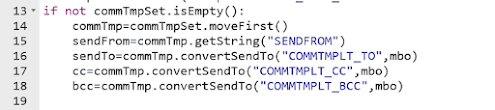
  • Import the MXServer and SqlFormat APIs; Use MXServer to get the communication template MboSet


    • Get the CommTemplate Mbo from MboSet;
      Use CommTemplate.convertSendTo() method to get the email IDs of sendTo, cc,bcc etc; Usually, these details are retrieved from a Role associated to Communication template or Workflow.

    • Use SqlFormat.resolvecontent() method to replace the values of binding variables in subject, message.
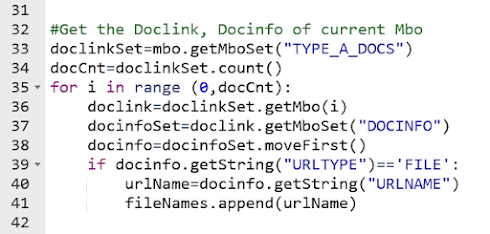
  • We can use custom relationship to get a specific type of documents. (Example: DOCTYPE='TYPE-A' and ownerid=:workorderid and ownertable='WORKORDER').
    Then, use the default relationship from DOCLINKS to DOCINFO to retrieve document details.(URLNAME, URLTYPE)
    Add the document path values (DOCINFO.URLNAME) to a string array. []


  • Finally, invoke the MXServer.SendEmail() method with sender, subject, message and attachment details. MXServer.sendEMail(sendTo, cc, bcc, sendFrom, subject, message, replyTo, fileNames, urlNames)


    Source Code:

Friday, April 12, 2024

Get count of JMS Queue Messages using Automation Script

  • Maximo use JMS queues for inbound, outbound data processing. These messages and message count can be manually viewed from External System application.
  • Here is a simple automation script to get the count of Messages in JMS Queues. It  can be used in Action Launch point to view message count in 'Action button' of an application  OR in an Escalation to send details via Email.

Script:

from psdi.iface.jms import JMSQueueBrowser
from psdi.iface.jms import MaxQueueCache
from psdi.iface.jms import QueueConfig
from psdi.iface.jms import JMSData

qbrowser = None
queueName = "jms/maximo/int/queues/cqin"
selector = "SENDER='ABC'"
config = MaxQueueCache.getInstance().getQueueConfig(queueName);
connectionFactory = config.getConfactName();
env = config.getEnv()
qbrowser = JMSQueueBrowser(queueName, connectionFactory, selector, env);
qList = qbrowser.getAllMessages();
qCount=len(qList)

#raise TypeError("Messages Count - "+str(qCount))
print '-- Number of Messages in the Queue : ' +str(qCount)


Script Variables:
queueName = path of the JMS queue as configured in Maximo


Launch Point Variables in Maximo: Beyond the Attribute Binding

Most Maximo developers are familiar with Launch Point Variables , but in real-world implementations, their usage is often limited to just on...